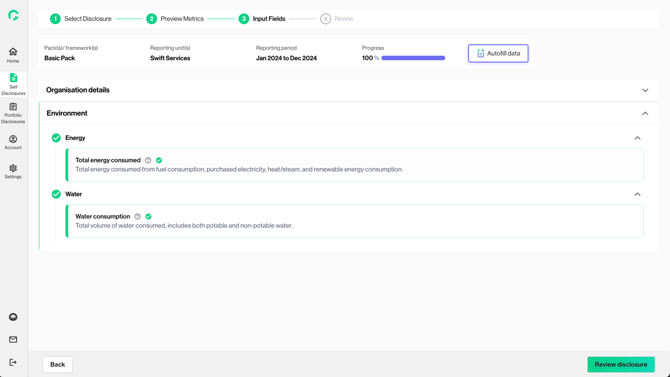
On the input page, user sees the list of metrics belonging to a particular disclosure framework / pack. For Basic Pack, Gprnt will only display metrics that are relevant to the nature of the organisation’s operations, based on the responses to the qualifying questions.
The input page allows users to input relevant data, which will then be used to compute the values for various metrics in the next step.
1. You can view the list of metrics that require an input.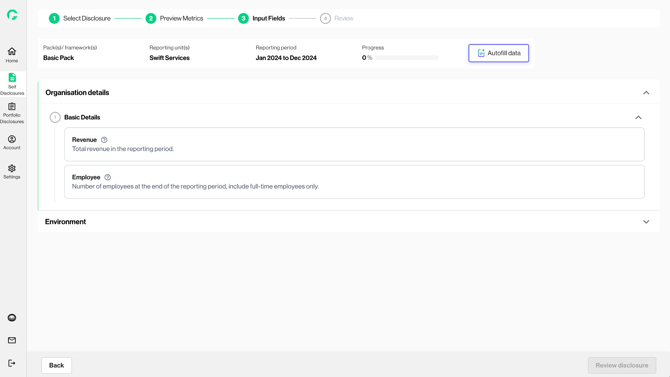
2. If you are disclosing for multiple reporting units, you can use the left navigation bar to input data for a selected unit.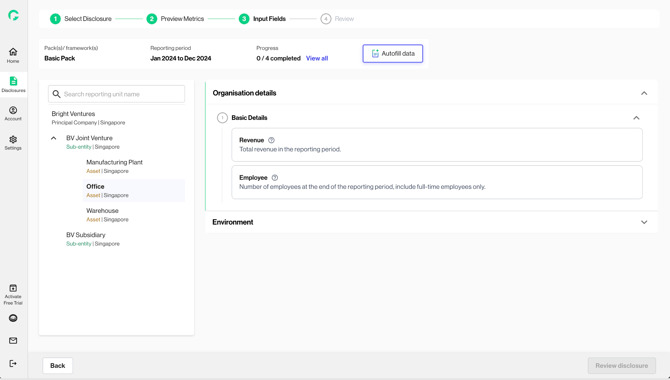
3. By clicking on each metric card, you will be directed to the respective input field page.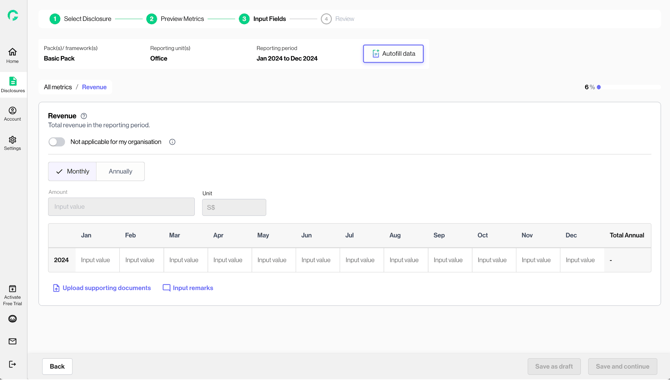
4. Clicking on the tooltip icon (?) will provide you more guidance on the input and field required.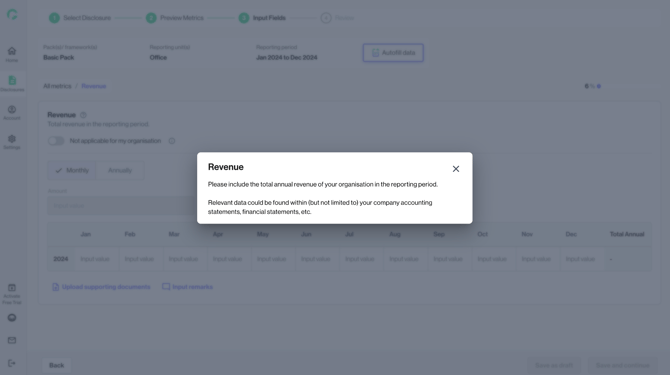
5. For certain fields, you have the option to input data on a monthly or annual basis. 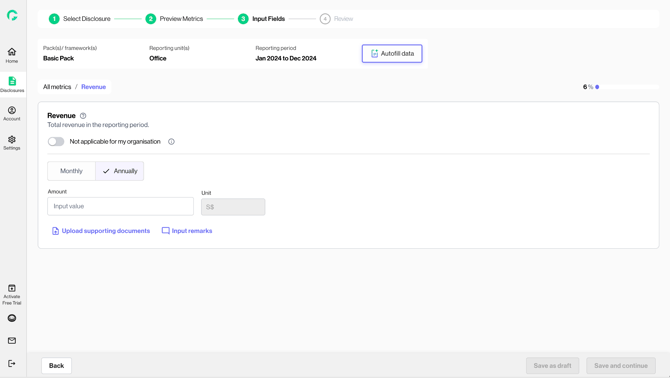
6. For every data input, you will have to upload a supporting document. 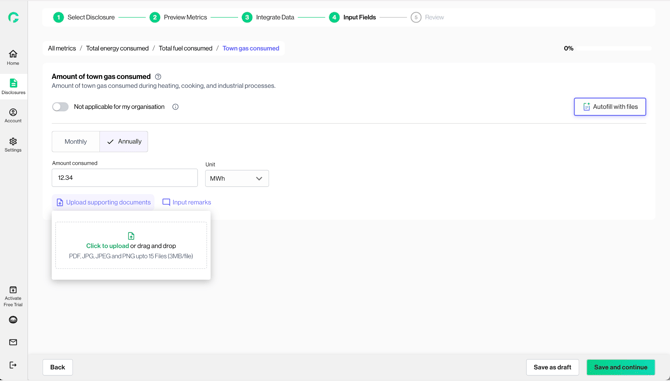
-
File types and formats: PDF, PNG, JPG or JPEG only
- File size limitations: Max file size is 3MB per file
- File number limitations: 15 files
7. For certain fields, you can add rows to provide multiple sets of data.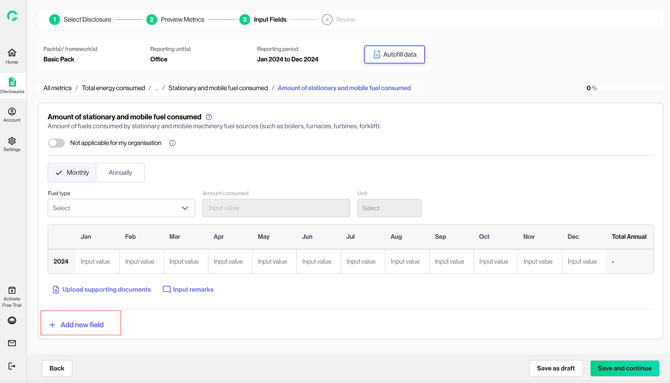
8. Once all data input is completed, click on ‘Save and continue’ button at the bottom right to save the data and be directed to the next incomplete metric. If you would like to save the input as draft, click ‘Save as draft’ to revisit the metric later.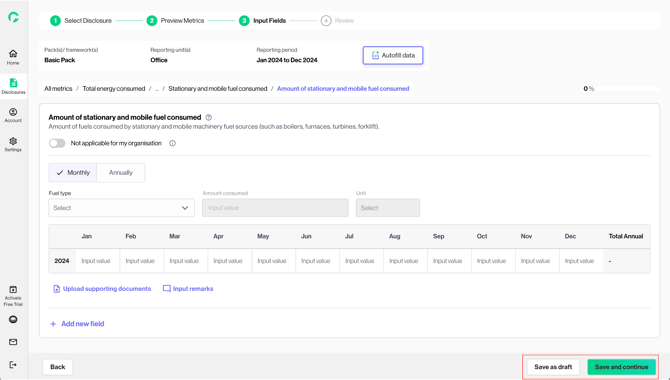
9. If the metric is not applicable to your organisation, you can select the “Not applicable” option and input the reason for exclusion. 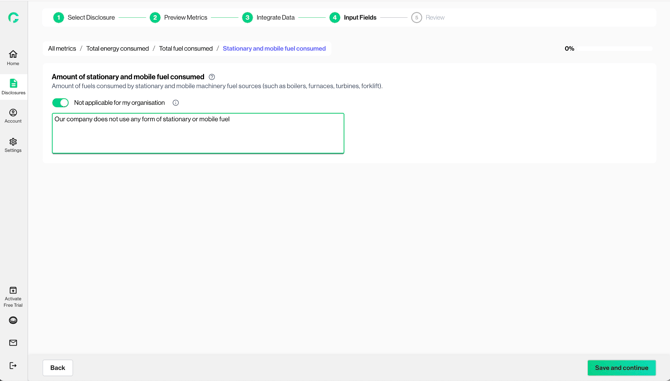
10. Completed metric will be indicated with a green tick. 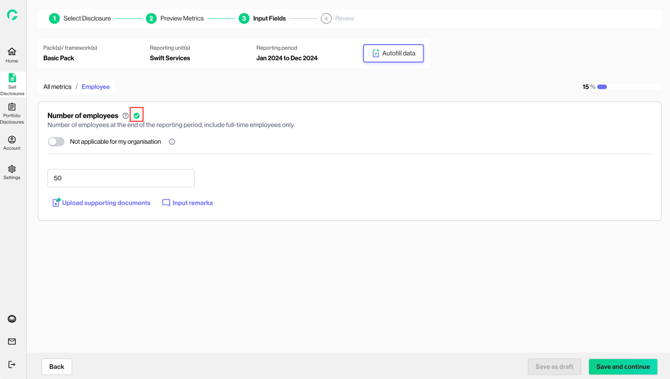
11. On the input page, completed sections will be displayed with a green tick. If you are disclosing for multiple reporting units, completed units are indicated with a green tick.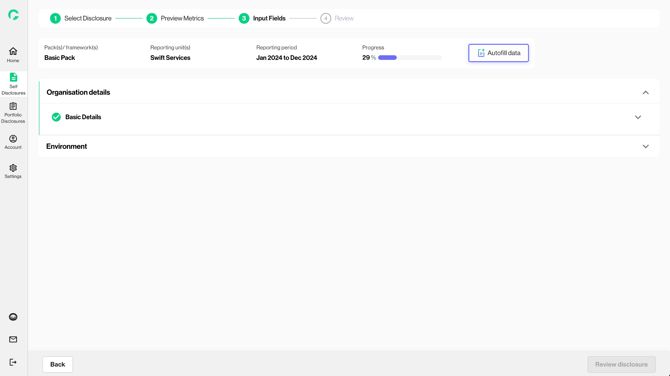
12. Once all required data has been completed by user, user can click on ‘Review Disclosure’ and proceed to next page for calculated output.