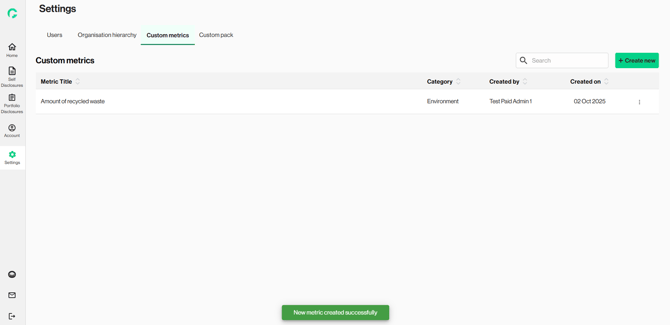
The Custom Metrics feature allows users to go beyond the platform’s predefined data library to create and report on metrics that are unique to their organisation’s requirements. This step is not mandatory.
This feature is available for: Admin and Contributor roles
1. From the left navigator, click on ‘Settings’, ‘Custom metrics’ tab.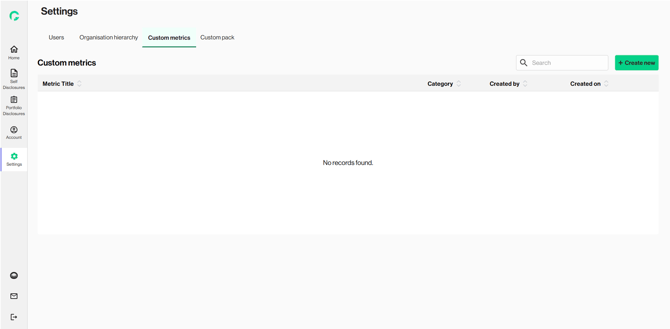
2. Click on ‘Create new’ to create a new metric.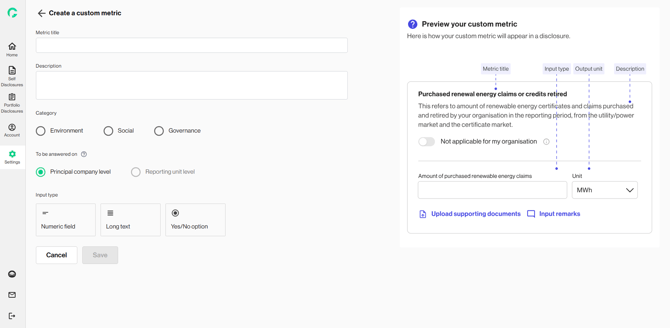
3. Input the ‘Metric title’ and ‘Description’.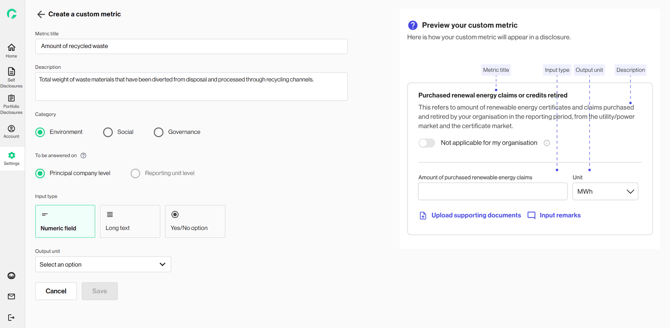
4. Select the metric ‘Category’. This will ensure that your metric is housed within the relevant categories to keep your disclosure inputs and outputs organised and consistent.
5. Select for which reporting unit you’d like the metric ‘To be answered on’
[Only applicable for users who have set up multiple organisation hierarchy]
-
Principal company level metric reflects the overall performance of the organisation and is answered only at the group level (e.g. transition strategy).
-
Reporting unit level metric reflects individual reporting unit's performance and is captured separately for each unit (e.g. electricity consumption).
6. Choose the ‘Input type’. The input type determines how users will provide values during disclosure:
- Numeric – for numbers (e.g., emissions in tCO₂e, revenue in USD).
- Long text – for qualitative inputs (e.g., policy descriptions, narrative disclosures)
-
Yes/No (Boolean) – for binary answers (e.g., Does your company have a climate policy?)
7. Chose the ‘Output unit’. Click on ‘Save’.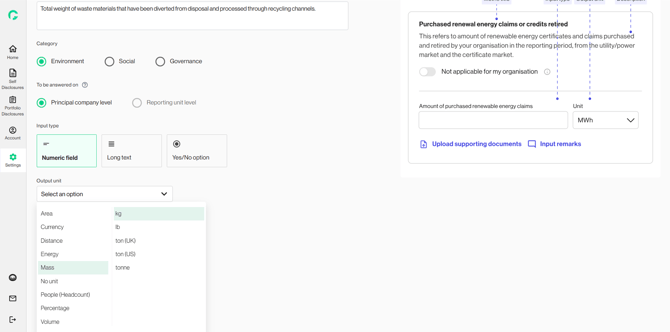
8. Click on ‘Save’ and a new metric would be created