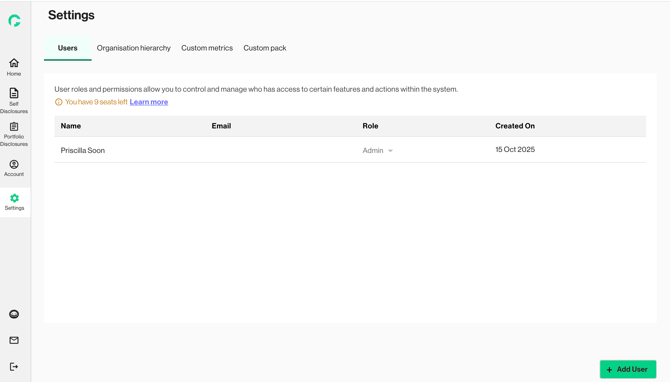
This feature is only accessible by Admin users. Each entity can have up to 10 users, and up to 3 Admin users, including the original Admin user account.
- Click on “Add User” to invite your team members to collaborate on Gprnt. If you have reached the invitation limit, the “Add user” button will be greyed-out and disabled.
2. Enter the invited user’s email and select the role to be assigned. Click on “Add more” if you wish to invite multiple users.
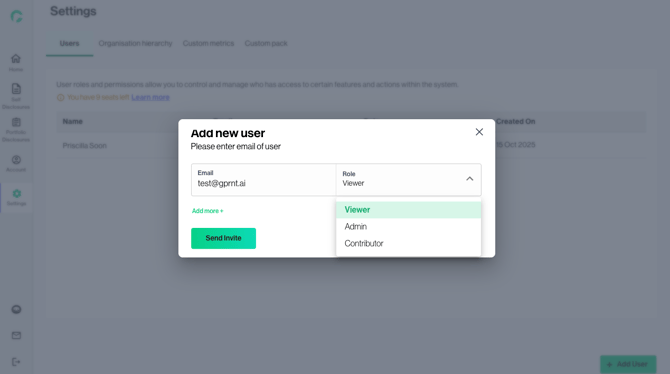
3. Click on “Send Invite” once all the fields are completed
|
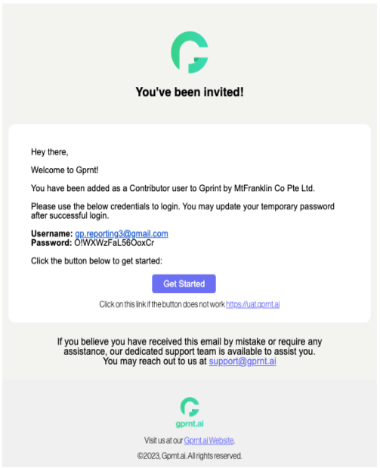
For the newly added user: 1. An email notification will be sent to the invited user with their username and temporary password.
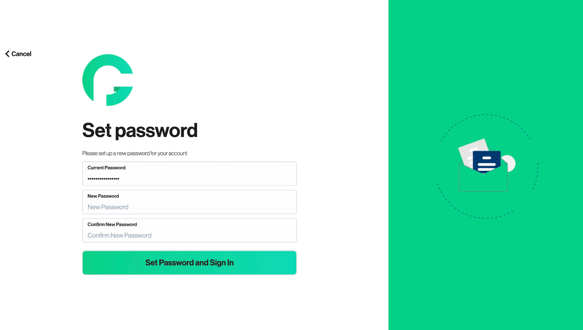
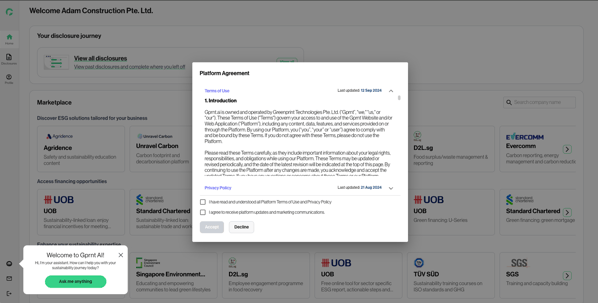
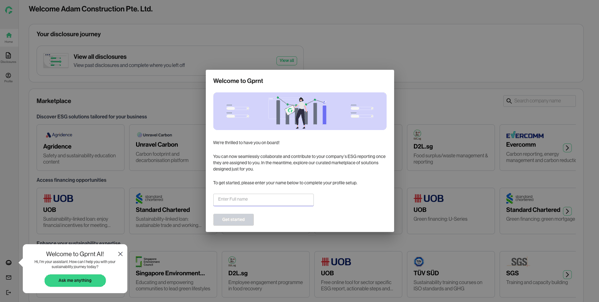
3. After changing the temporary password, user will be able to successfully log in. The user will be asked to accept the platform policies. Users will be required to provide their name and their company profile will be automatically mapped to the admin user.
|